
Summary
To use Inbound SMS to Chat, you require a subscription to an SMS enabled number from Twilio that is configured for UCx Contact Center. Your SMS number subscription and text messaging usage fees will be billed directly to you by Twilio.
Complete the following steps:
- Create a Twilio Account
- Set up an SMS chat account using Twilio
- Register for A2P 10DLC
- Register a campaign with Twilio
Note: Your Voice Specialist will inform you of the number of required DIDs to set up with Twilio.
Create a Twilio Account
- Navigate to: https://www.twilio.com/en-us
- Click the Start for Free button in the top right corner of the webpage.

- Complete all the fields on the next page and click Start Free Trial
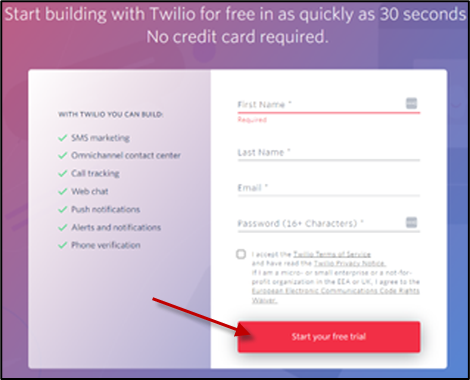
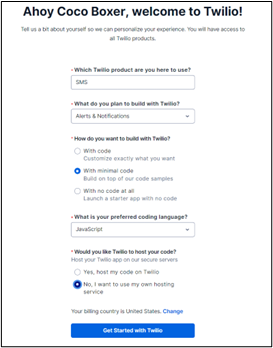
- After completing the initial setup, you will be prompted to verify your email and phone number information. When that is complete, you will be redirected to the page shown below. Please enter the following information:
- Which Twilio product are you here to use: SMS
- What do you plan to build with Twilio: Alerts & Notifications
- How do you want to build with Twilio: With minimal code
- What is your preferred coding language: JavaScript
- Would you like Twilio to host your code? No, I want to use my own hosting service
- Click Get Started with Twilio
- When you have created your Twilio account, you will be routed to the page shown below.
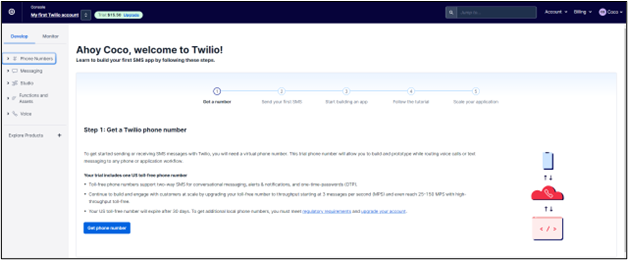
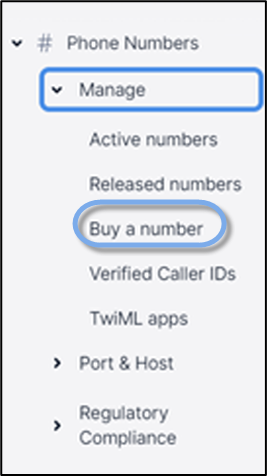
- Navigate to the left-hand side of the page under # Phone Numbers > Manage > Buy a number
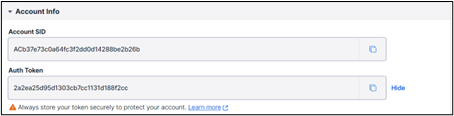
- After purchasing a number, provide the purchased phone number, and the Account SID and Auth Token located in the Account Info section to your Voice Specialist.
Note: If more than one DID is required, repeat steps 7 and 8 until all DIDs are purchased.
Set up an SMS Chat Account using Twilio
- Log in to your Twilio account.
- Click on the Eye icon to reveal the AUTH TOKEN.
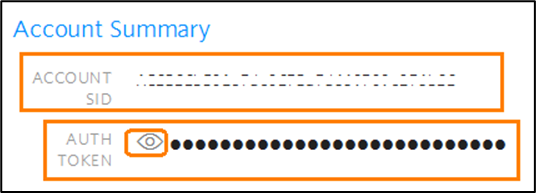
- Record the Account SID and the AUTH TOKEN. You will need these when updating your SMS Chat Settings in the
- Click on Phone Numbers to access the Phone Numbers page.
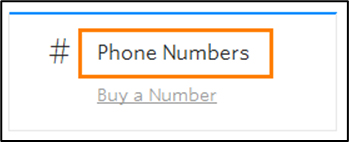
- Click on the Phone Number to be configured for Chat.

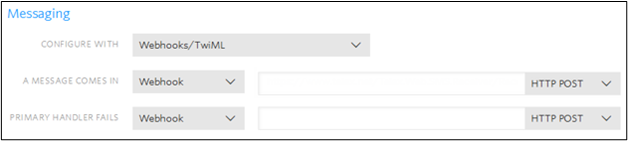
- Scroll to the bottom of the page and update the Messaging section
- From the CONFIGURE WITH drop-down menu, select Webhooks/TwiML.
- From the A MESSAGE COMES IN drop-down menu, select Webhook and enter the following URL:
- From the PRIMARY HANDLER FAILS drop-down menu, select Webhook and enter the same URL as noted above.
- Click Save.

Register for A2P 10DLC
Visit Twilio’s Help Center Article for instructions to register for A2P 10DLC.
Register a Campaign with Twilio
Visit Twilio’s Help Center Article for instructions to register a campaign.
Appendix
Helpful Links and Troubleshooting
- For a video that will help you configure your DIDs, click here.
- For more information about setting up and troubleshooting Twilio, see Twilio’s Help Center
What is A2P 10DLC?
A2P 10DLC refers to Application-to-Person 10–Digit Long Code, a messaging standard in the United States that allows businesses to send SMS messages to customers using standard 10-digit phone numbers.
Unregistered SMS/MMS messages will be blocked, and none of your recipients will receive any messages until registration is complete. Messages sent by unverified providers will be subject to heavier filtering by mobile carriers. This means they will not allow any unregistered traffic to leave the sender’s inbox.