
Call Forwarding Busy allows you to forward your incoming calls to a different number while you are on the phone.
- Log in to ucx.telepacific.com.
- Click Incoming Calls on the left-hand menu.
- On the Incoming Calls page, click the Call Forwarding Busy link in the Basic column.
- The Call Forwarding Busy page opens.
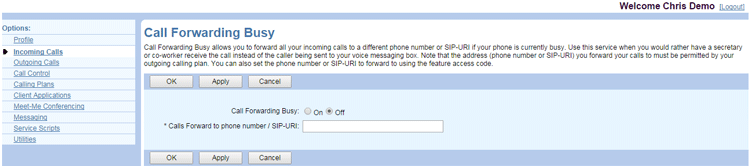
- Click On to enable this feature, or Off to disable the feature. When set to On, calls will be sent to the number you have designated in the Calls Forward to field.
- Enter a phone number to which your calls will be forwarded. If forwarding to an internal number (such as another phone, hunt group, or auto attendant), enter the extension only. If forwarding outside the group, enter the 10-digit telephone number (a ‘1’ before the number is not required).
- Click OK or Apply to save changes.