
Call Transfer allows you to transfer a call to another phone using your phone or the CommPilot Call Manager.
When Call Transfer Recall is configured, you can ensure that the calling party is handled by a live person (either the intended destination or the receptionist) by avoiding sending the calling party to voicemail.
- Log in to ucx.telepacific.com.
- Click Call Control on the left-hand menu.
- On the Call Control page, click the Call Transfer link in the Basic column.
- The Call Transfer page opens.
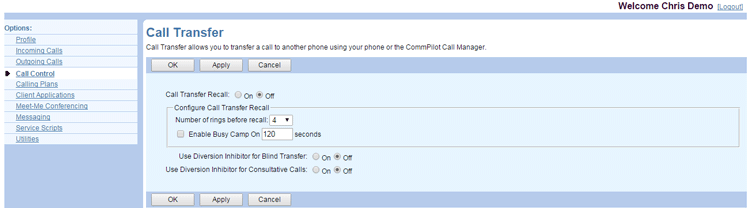
- Under Call Transfer Recall, click On or Off. When On, Call Transfer Recall returns a call to the receptionist (or the device that forwarded the call). The default for this feature is Off.
- Select the number of rings (two to 20) to play before a call returns to the receptionist from the drop-down list.
- Choose to enable busy camp on by checking Enable Busy Camp On and selecting the number of seconds.
- Set Use Diversion Inhibitor for Blind Transfer to On or Off. When On, the call is not redirected to an alternate destination/voicemail.
- Set Use Diversion Inhibitor for Consultative Calls to On or Off. When On, the call is not redirected to an alternate destination/voicemail.
- Click OK or Apply to save changes, or Cancel to exit without saving.